
Master Library

|

|

Listen to your mix on your phone. Without leaving your DAW.

A copy of your mix goes to your phone, Bluetooth device, or a Remote listener while your main audio stays on your DAW monitors.

Phone over Wi‑Fi • Bluetooth and other audio outputs • Remote listening over the internet

One-time payment • All plugin updates included

Stop exporting your mix just to check it on your phone.

Make a tweak. Export. Transfer the file. Open it on your phone. Listen. Go back to your DAW. Tweak again.

Mix2Air makes the whole process simpler.
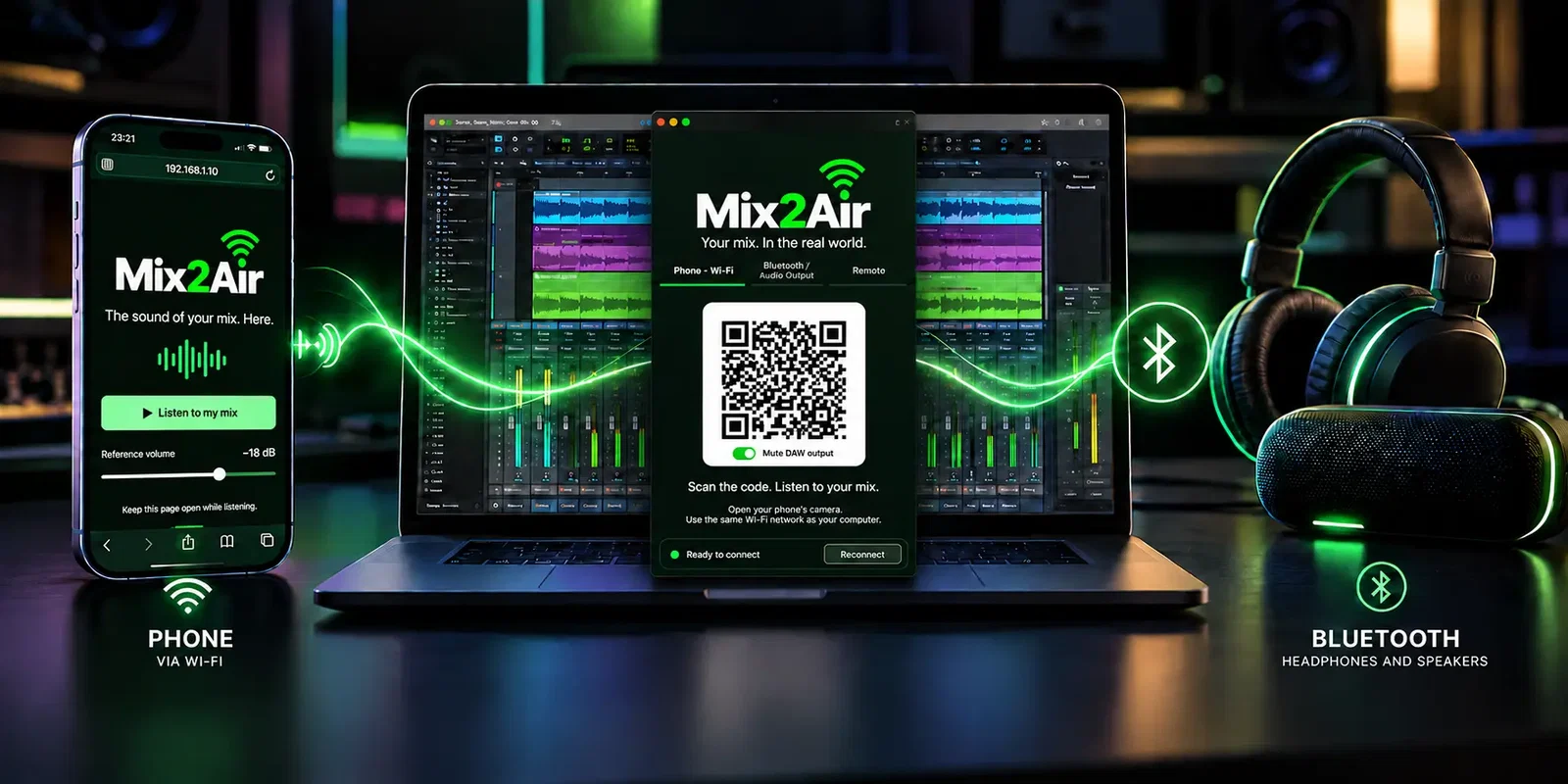
Insert Mix2Air at the end of your master bus chain, scan the QR code in the plugin with your phone, and hear how your mix sounds on it while you keep working in your session.

Tweak. Hit play. Listen.

THREE WAYS TO LISTEN

Check how your mix sounds on your phone, a Bluetooth speaker, or even online through a live link.

PHONE — WI-FI

Scan the QR Code and open Mix2Air right in your phone’s browser. No app required.

BLUETOOTH

Send your reference to headphones, a Bluetooth speaker, or another audio output available on your computer.

REMOTE — LIVE LINK

Generate a link and send it to anyone who needs to listen. They open it in their browser, wherever they are, and follow your mix in real time while you play it in your DAW.

Your DAW’s main output continues to feed your audio interface and monitors. Mix2Air sends a copy of your mix to the selected device — or to anyone listening through the Remote link.

AUDIO OUTPUTS

Your mix can play wherever you want.

Mix2Air sends a copy of your mix to any audio output available on your computer, while keeping your DAW on the main monitors.
  • ✓Bluetooth
    Headphones, speakers, and other devices connected to your computer.
  • ✓Another computer output
    Use your laptop’s built-in output, a second interface, or any available port.
  • ✓TV, HDMI, and displays
    Check your mix on displays and audio systems connected through HDMI or other outputs.
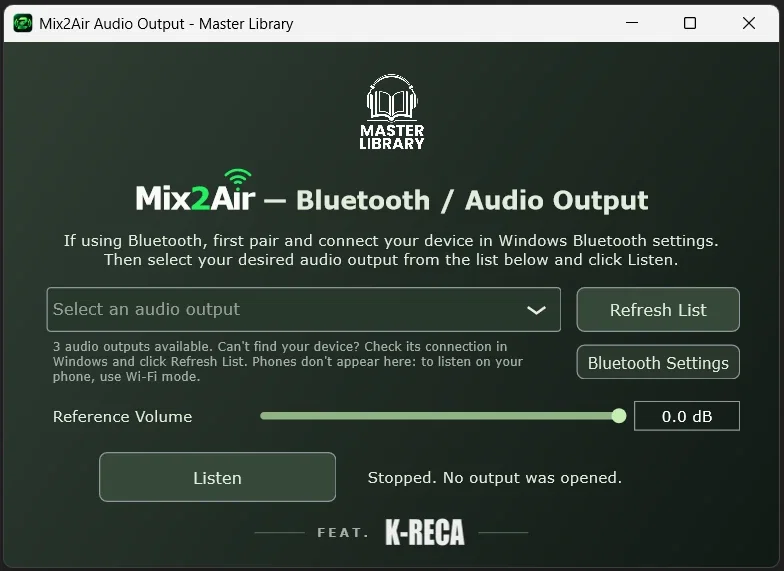
Mix2Air Bluetooth / Audio Output window, where you pick the audio output
Choose the output that best represents where your music will be heard.

FEATURES

Simple on the outside. Powerful in your workflow.

✓

Listen in your browser or through a Remote link

✓

Quick connection via QR Code

✓

No app required on your phone

✓

Streaming over your local network

✓

Headphones, speakers, and other audio outputs

✓

Remote listening live, from anywhere

✓

Independent reference volume

✓

Your main output stays untouched

✓

Built for your mixing workflow

Real testimonials

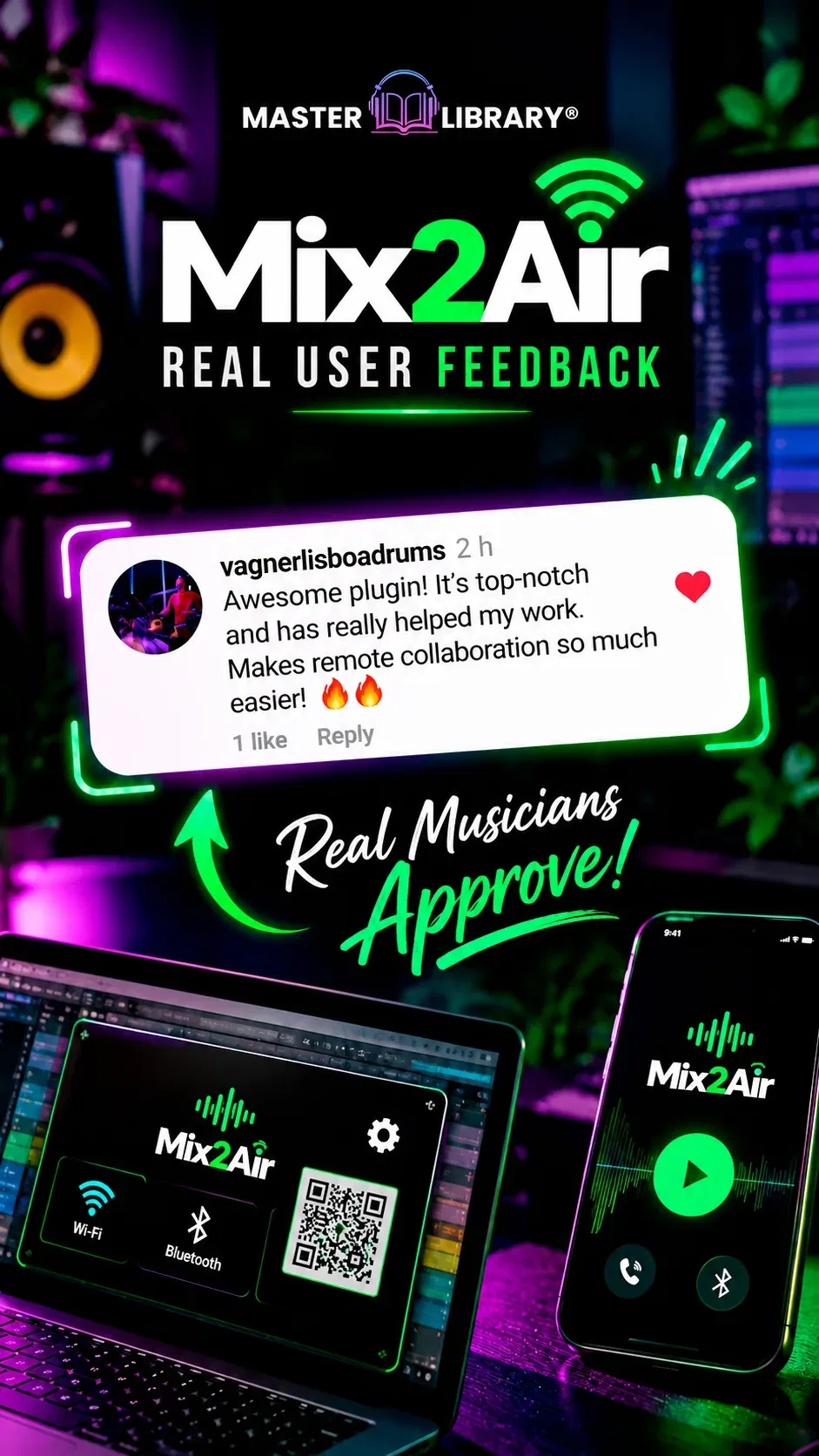
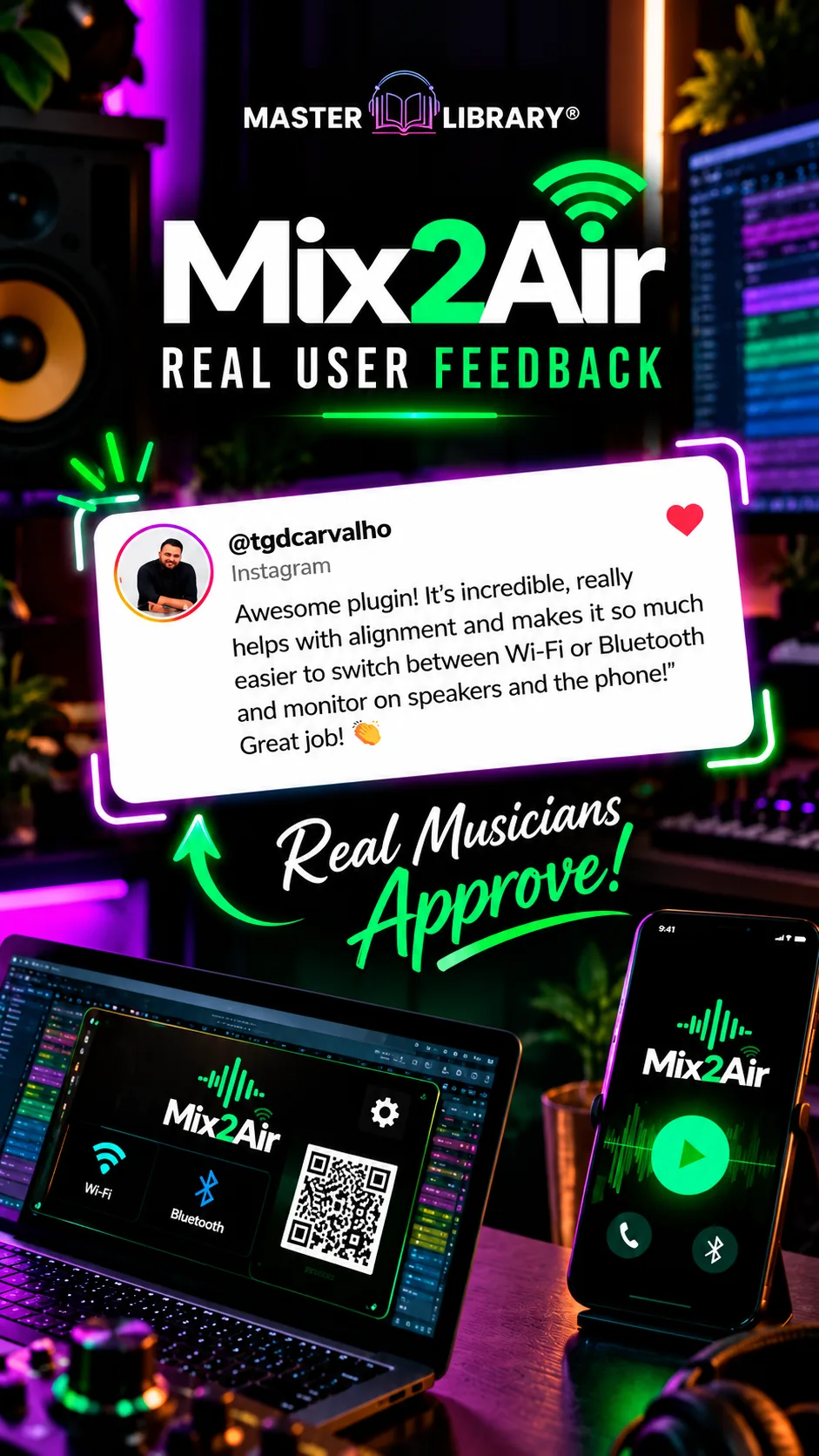
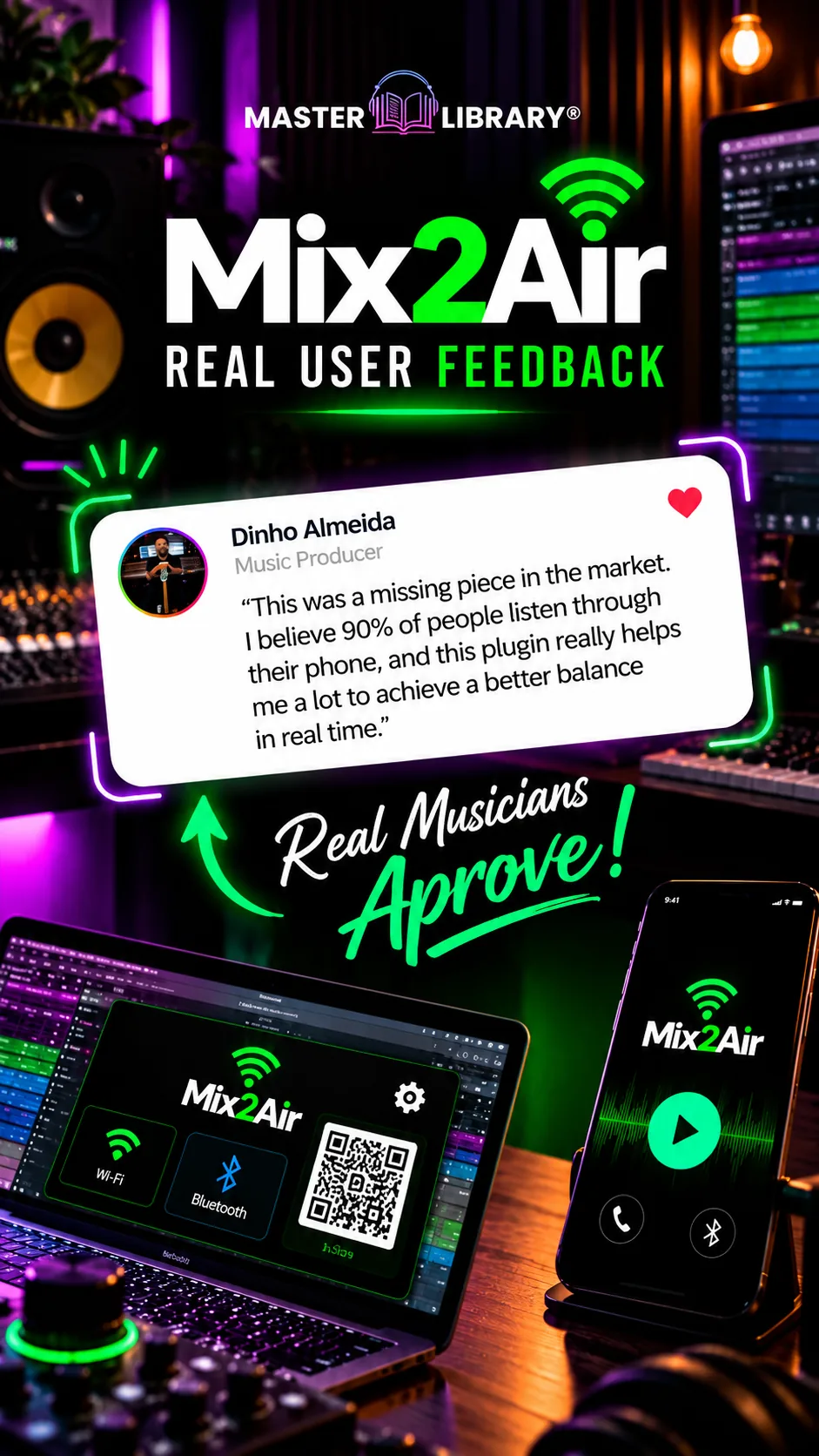
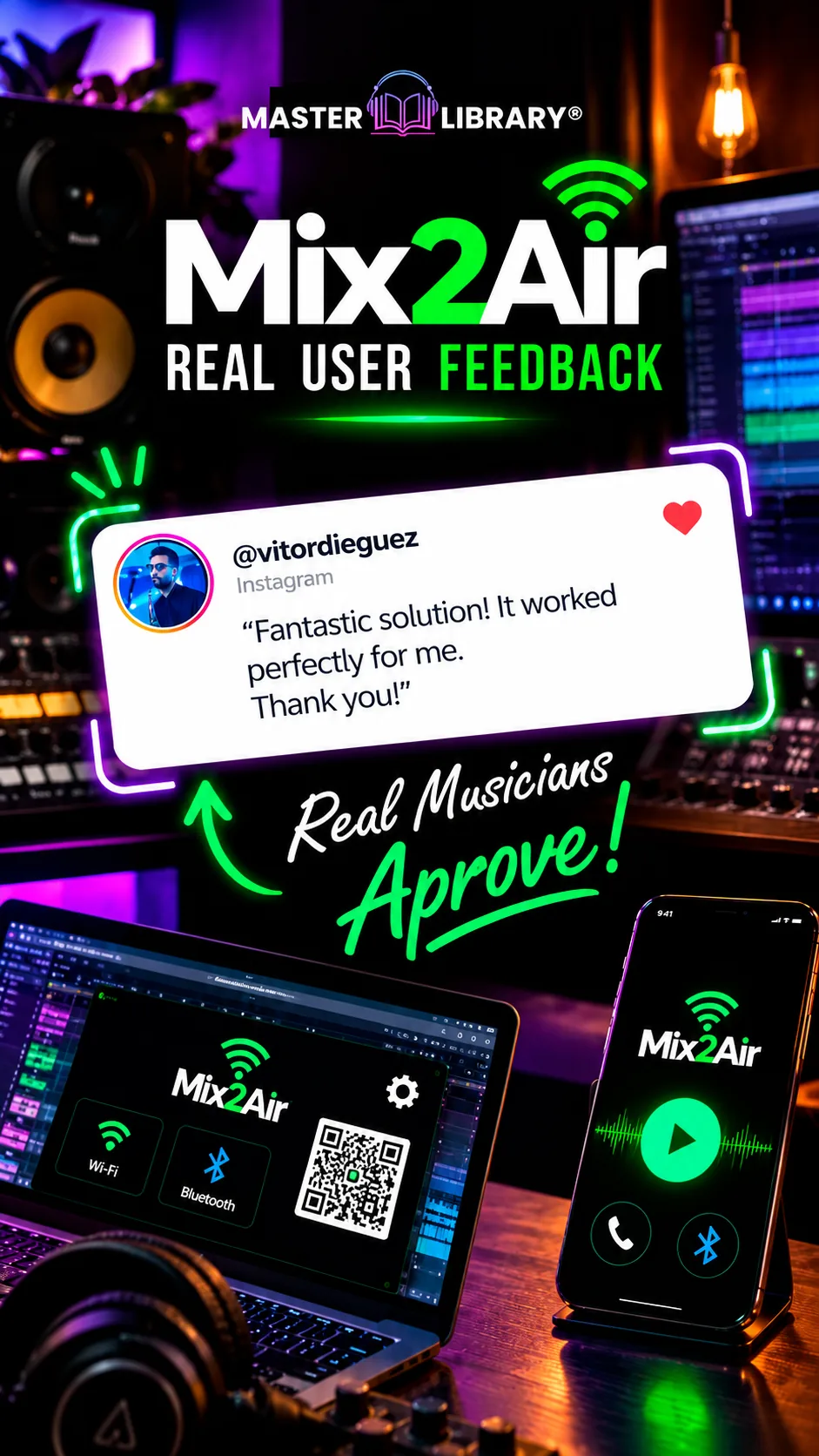
People who know audio are already talking about Mix2Air. 🔥

From home studios to experienced professionals: see why Mix2Air is drawing attention from people who take mixing seriously.

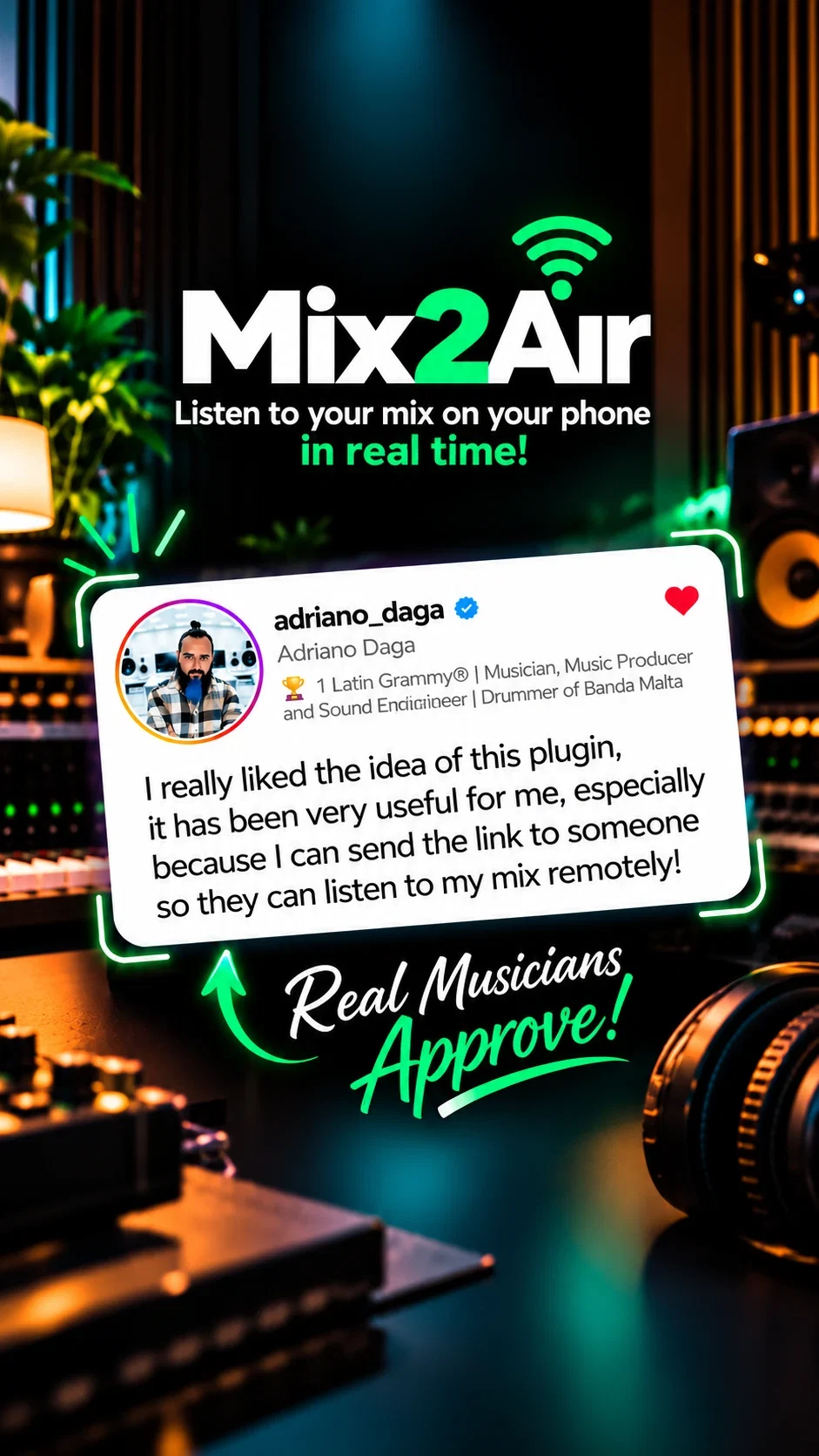
Mix2Air testimonial - Adriano Daga
Mix2Air testimonial 1
Mix2Air testimonial 2
Mix2Air testimonial 3
Mix2Air testimonial 4
Mix2Air testimonial 5
Mix2Air testimonial 6
Mix2Air testimonial 7

MIX2AIR

Your mix doesn’t live only in the studio.

A great mix needs to sound good beyond your monitors. Listen on your phone and make adjustments as you go.

One-time payment • All plugin updates included

Why settle for a demo when you can try the full version?

Master Library 7-day guarantee seal

MASTER LIBRARY

Try it risk-free.7-day guarantee.

At Master Library, you get 7 days to try our plugins with complete peace of mind.

If for any reason you're not satisfied, just get in touch with us and request a 100% refund of the amount you paid.

⚡
Real trialUse it for 7 days, no strings attached.
↻
Full refundDon't love it? 100% guaranteed.
✓
Secure checkoutYour data is always protected.

COMPATIBILITY

Check the systems, formats, and connections compatible with Mix2Air.

Windows

  • Windows 10 or 11 (64-bit)
  • Formats: VST3 and AAX
  • Not compatible with 32-bit systems

macOS

  • macOS 10.15 or later
  • Formats: VST3, Audio Units (AU) and AAX
  • Compatible with Apple Silicon and Intel

New: AAX for Pro Tools on Mac

Connection requirements

Phone via Wi‑FiComputer and phone on the same local network.
BluetoothDevice connected in advance and recognized by the operating system.
Audio OutputAudio outputs available on your computer.
RemoteInternet connection for remote audio streaming.

Your main audio remains on your interface and monitors.
Mix2Air sends a copy to the reference you choose.

Compatible DAWs
Eduardo K-RECA

EDUARDO K‑RECA

BUILT FOR THE REAL WORLD

Mix2Air feat. K-RECA

Studio experience, built into a tool.

Mix2Air was developed by Master Library in collaboration with Eduardo K-RECA, a mixing engineer whose career spans more than 15,000 songs and 30 TV opening sequences, as well as work on films and documentaries.

K-RECA’s hands-on mixing experience helps shape the testing, validation, and refinement of Mix2Air. It was built to meet a simple need for audio professionals: quickly hearing how a mix really sounds beyond the studio monitors.

Master Library × K-RECA

FAQ

Frequently asked questions

Does Mix2Air work on Windows and Mac?

Yes! Mix2Air is available for Windows in VST3 and AAX formats, and for Mac running macOS 10.15 or later in VST3, Audio Units (AU) and AAX formats. You can now use Mix2Air in Pro Tools on Mac with native AAX.

Which plugin formats are available?

Windows: VST3 and AAX. Mac (macOS 10.15 or later): VST3, Audio Units (AU) and AAX.

Which DAWs are supported?

Mix2Air works with Windows DAWs that support VST3 or AAX, and with Mac DAWs running on macOS 10.15 or later that support VST3, Audio Units (AU) or AAX, including Pro Tools. Check which formats your DAW supports and use the version for your operating system.

Do I need to install any files manually?

On Windows, just run the installer. It automatically places the files in the standard system folders. On Mac (macOS 10.15 or later), follow the installation instructions included with the VST3, Audio Units (AU) and AAX downloads.

Is it a one-time payment? Are updates included?

Yes! You pay once, with no monthly fees or subscription. All Mix2Air updates are included at no additional cost.

How do I receive my license?

After your purchase, you’ll receive a separate email from Master Library with installation instructions, download links, and your license key. Simply copy the key, open Mix2Air, and activate it directly in the plugin.

How many computers can I use my license on?

Each Mix2Air license can be activated on up to 2 computers. For example, you can use it on your main production computer and a second computer.

Do I need an internet connection to use the plugin?

An internet connection is only required to activate your license. Once activated, Mix2Air works without internet access. To listen on your phone, your computer and phone simply need to be on the same local network (Wi-Fi). Audio streams directly over your local network, without going through the internet.

Do I need to install an app on my phone?

No. Just scan the QR code shown in the plugin and open Mix2Air in your phone’s browser. To listen over Wi-Fi, your phone must be connected to the same Wi-Fi network as your computer.

How does Mix2Air work?

Insert Mix2Air on your session’s master bus and choose where you want to listen. For your phone, select Wi-Fi mode, scan the QR code displayed by Mix2Air, and open the page in your browser. Tap the listening button to start—no mobile app required. For Bluetooth headphones or speakers, select an audio output available on your computer in Mix2Air. Hit play in your DAW and hear your mix on the actual device, without exporting any files.

Does Mix2Air change my DAW’s main audio output?

No. Your DAW’s main output continues to feed your audio interface and studio monitors as usual. Mix2Air sends a copy of the mix to your chosen device, leaving your main output unchanged.

Can I listen on Bluetooth headphones and speakers?

Yes. You can send reference audio to headphones, a Bluetooth speaker, or another audio output available on your computer. To use Bluetooth devices, your computer needs built-in Bluetooth or a compatible Bluetooth adapter, and the device must already be connected to your system. Then select that output in Mix2Air and hit play in your DAW.

Does Mix2Air simulate the sound of a phone, headphones, or a speaker?

No. There is no simulation: you hear your mix on the actual device, the way it will be heard outside the studio.

Can I adjust the reference volume independently?

Yes. Mix2Air has an independent volume control for your reference audio.

Do I need to export my mix or transfer any files?

No. There’s no bouncing or file transfer involved. Keep working in your session while listening to your mix on another device.

|

|

|